Lead capture forms: 14 Data-backed tactics to grow your leads + Tips & templates
Stop losing leads. Discover 14 best practices and more tips to optimize lead capture forms, reduce abandonment, and increase conversions with ready-to-use templates.
Sushma Shetty
20 min read
MARKETING
Lead capture forms: 14 Data-backed tactics to grow your leads + Tips & templates
Contents
Here’s a reality check: Lead capture forms are under siege, and from multiple fronts.
But here’s the paradox: when someone does reach your form now, they’re exponentially more qualified than, say, in 2023. These visitors have already consumed competitor content via ChatGPT, fact-checked claims through AI summaries, and pre-qualified themselves before clicking. They’re past research—they’re seeking a solution. Lower volume, dramatically higher intent.
This shift demands ruthless optimization. Your forms can no longer rely on traffic volume to deliver pipeline. The median landing page converts at 6.6%, but forms with simple language convert at 11.1%—56% higher than complex copy.
This guide is your survival playbook for web-based lead capture—whether you’re using platform-native forms (LinkedIn Lead Gen, Meta Lead Ads) or external landing page forms (Unbounce, WordPress). It has 14 best practices to increase form completion, platform-specific playbooks for WordPress and LinkedIn, and a copy-paste template built for the AI-first traffic landscape. Whether launching your first lead capture form website or re-engineering LinkedIn lead gen forms at scale, you’ll squeeze maximum ROI from every visitor who makes it to your form.
Why lead capture forms still rule lead gen
Despite the rise of chatbots, voice search, and “cookieless” tracking, lead capture forms remain the strongest source of explicit intent—prospects knowingly exchange their details for value.
lead capture forms: 14 data-backed tactics to grow your leads + tips & templates 11
At the same time, lead generation has expanded beyond traditional forms, with platforms pushing their own conversion paths: WhatsApp inquiries, Instagram-native actions, LinkedIn “comment to access” tactics, and other DM-driven interactions. These low-friction methods are reshaping how leads are captured, but forms still stand out for their clarity of intent.
The numbers bear this out:
Median form conversion rates across industries are 4.7%, while top-quartile forms convert at 11.2%+. (Source)
LinkedIn’s native Lead Gen Forms can reduce cost per lead by 15–30% compared to sending prospects to external landing pages, thanks to pre-fill and lower friction. (Source).
The pain point? Most forms bleed conversions. Causes include too many fields, vague CTAs, mobile-unfriendly layouts, privacy concerns, and slow load times. This guide fixes those leaks.
Let’s see what you can start working on right away!
Quick wins vs. strategic plays: The 80/20 of form optimization
Quick wins (implement in <1 hour):
Remove one field → +5–10% conversion
lead capture forms: 14 data-backed tactics to grow your leads + tips & templates 12
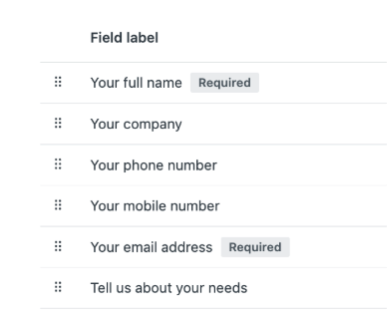
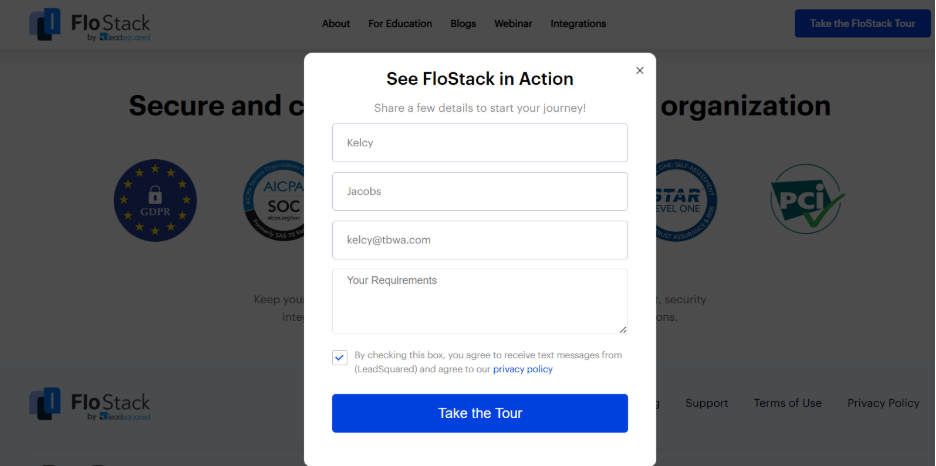
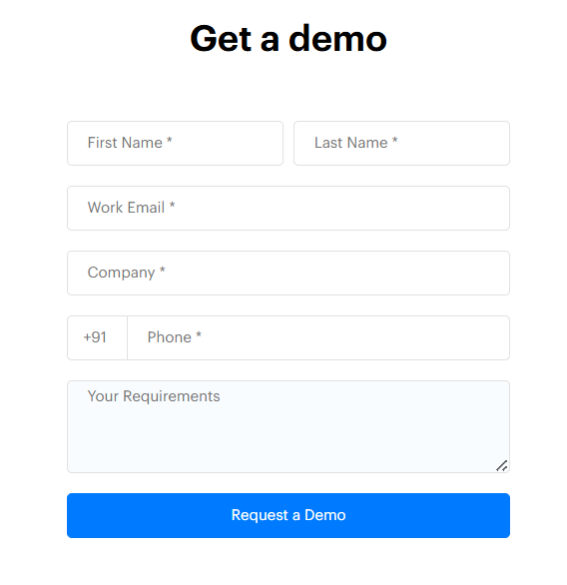
Example: A SaaS demo form that asks only for Name and Work Email instead of Name, Email, Phone, Company, Role.
Why it works: Every extra field adds friction. Removing just one non-essential field (like phone number) can significantly boost submissions.
Add privacy reassurance → +3–7%
Fix mobile tap targets → +8–15% on mobile traffic
Example: A mobile form with:
Large input fields
Full-width CTA button
Enough spacing between fields to avoid mis-taps
Strategic plays (2–4 weeks):
Multi-step progressive profiling → +20–35% for high-friction offers
LinkedIn lead gen forms with CRM automation → 2–3× faster lead-to-opportunity velocity
Focus quick wins on your highest-traffic pages first, then layer strategic plays for long-term ROI.
14 best practices for high-converting lead capture forms
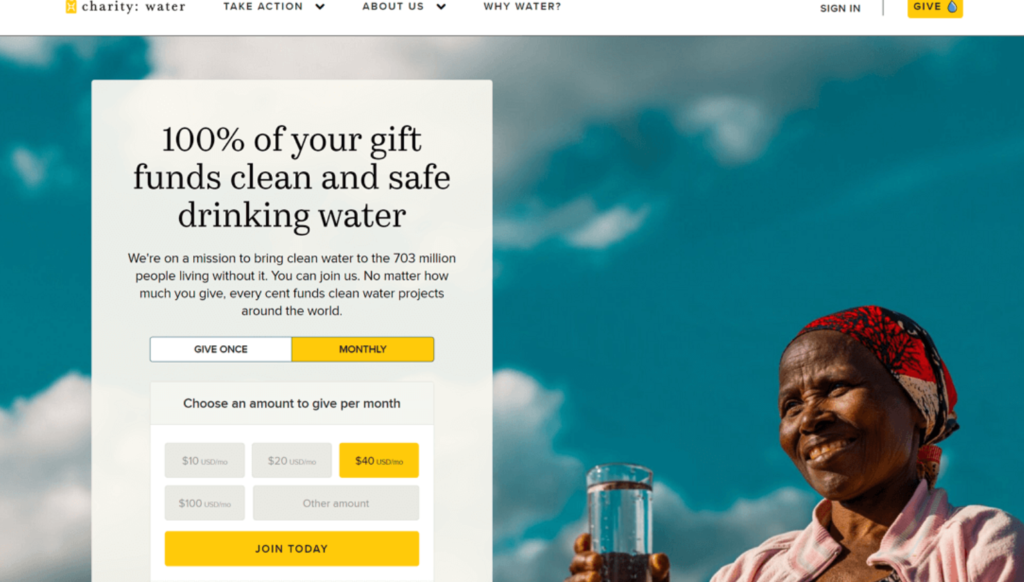
1. Above-the-fold placement with clear value proposition
Example:
lead capture forms: 14 data-backed tactics to grow your leads + tips & templates 13
How:
Place forms in the hero section or sticky sidebar.
An example headline formula: [Outcome] in [Timeframe] without [Objection]
Use benefit bullets (not feature lists): “✓ 24/7 access ✓ No credit card ✓ Cancel anytime.”
Metric to watch: % of visitors who scroll to form vs. those who see it immediately (Google Analytics scroll depth).
lead capture forms: 14 data-backed tactics to grow your leads + tips & templates 14
2. Minimize fields: 3–5 for top-of-Funnel, progressive profiling for nurture
Why it works: Eliminating just one field from your form can increase conversions. For example, reducing a form from 4 fields to 3 can increase conversion rate by almost 50%. Yet B2B marketers often demand 12+ fields “for qualification.”
Solution:
Top-of-funnel (cold traffic, lead magnet): Name + Email only. Conversion rate: 15–25%.
Mid-funnel (demo request): Name + Email + Company + Role. Conversion rate: 8–12%.
Bottom-funnel (pricing, trial): Add Phone, Company Size, Use Case. Conversion rate: 5–8%.
Progressive profiling: Capture Name/Email first, then ask for Company/Role on second visit (HubSpot, Marketo, Pardot support this natively).
Metric to watch: Form abandonment rate by field count (Google Analytics event tracking or Hotjar form analysis).
3. Single-step vs. multi-step forms: When to use each
Single-step forms:
Use for: Quick lead magnets, newsletter signups, contact requests.
Pros: Faster, no drop-off between steps.
Cons: Higher perceived friction for long forms.
Multi-step forms:
Use for: High value offers (demos, trials, consultations), complex qualification.
Pros: 20–35% higher completion (CXL, 2024) because each step feels smaller; progress bar reduces abandonment anxiety.
How-to (multi-step):
Step 1: Ask for least sensitive info (Name, Email)— Two-thirds (66.7%) of people who start filling out a form successfully complete it.
lead capture forms: 14 data-backed tactics to grow your leads + tips & templates 15
Step 2: Qualifying questions (Company, Role)—15% drop-off.
Step 3: Commitment info (Phone, Demo Date)—5% drop-off.
Use progress bar: “Step 2 of 3.”
Metric to watch: Step-by-step completion rate; optimize steps with highest drop-off first.
4. Match offer & friction: High value offers justify longer forms
Framework:
Offer Type
Perceived Value
Max Fields
Example
Newsletter
Low
2
Name, Email
eBook/Whitepaper
Medium
3–4
+ Company, Role
Demo/Consultation
High
5–7
+ Phone, Company Size, Pain Point
Free Trial ($$$ product)
Very High
7–10
+ Payment method (held, not charged)
Metric to watch: Lead-to-opportunity conversion rate (not just form CVR)—quality matters.
5. Microcopy that reduces anxiety
What to include:
Time estimate: “Takes 30 seconds” or “2-minute survey.”
Privacy reassurance: “We’ll never share your email. Unsubscribe anytime.”
GDPR/CCPA compliance: “By submitting, you agree to our [Privacy Policy].”
Field-level help text: Hover icon on “Company Size” → “Select annual revenue range.”
Example: Mailchimp adds “We hate spam too” below email fields—conversion uplift of 7% (A/B test, 2023).
Metric to watch: Click-through rate on privacy policy links; high CTR suggests confusion.
6. Inline validation and error handling
Best practices:
Real-time validation: Email format checks as user types (red/green indicator).
Error messages above the fold: “Please enter a valid email” appears next to the field, not at the top of the page.
Positive reinforcement: Green checkmark when field is correct.
Example: Formstack validates phone numbers by country code—blocks invalid formats before submission, reducing bad data by 40%.
Metric to watch: Form error rate (Google Analytics events for “validation_error”).
How to build customizable and mobile-friendly lead capture forms:
Tap targets: Minimum 44×44px (Apple HIG), 48×48px (Google Material Design). Avoid tiny checkboxes.
Full-width fields: Stack vertically; use type=”email” and type=”tel” to trigger correct mobile keyboards.
Single-column layout: No side-by-side fields on mobile.
Autofill support: Use autocomplete attributes (autocomplete=”name”, autocomplete=”email”).
Sticky CTA button: Keep submit button visible as user scrolls.
WordPress plugins like WPForms and Gravity Forms offer mobile-responsive templates out-of-the-box. Test the forms on real devices (not just browser emulators).
Metric to watch: Mobile vs. desktop conversion rate gap; form abandonment by device type.
lead capture forms: 14 data-backed tactics to grow your leads + tips & templates 16
When building your form, ensure:
Single-column layout (no side-by-side fields)
Minimum 44×44px tap targets for buttons/checkboxes
Input type attributes (`type=”email”`, `type=”tel”`) for correct mobile keyboards
Day 1–2: Audit existing forms. Count fields, check mobile UX, measure CVR by device.
Day 3: Implement quick wins (remove 1 field, add privacy text, fix tap targets).
Day 4–5: Evaluate channel–business fit. For B2B/enterprise audiences, set up LinkedIn Lead Gen Forms for one campaign and integrate with CRM.
Day 6: Install/optimize lead capture form wordpress plugin (WPForms or Gravity Forms); enable honeypot.
Day 7: Launch A/B test (headline or CTA copy); set up GA4 tracking.
Expected outcome: 15–30% CVR uplift within 30 days.
Turn form submissions into revenue with LeadSquared
You’ve optimized your lead capture forms—now ensure every submission gets the follow-up it deserves. LeadSquared CRM eliminates the gap between form fill and first contact with intelligent automation built for high-velocity marketing teams.
Connect your lead capture form website or Linkedin lead gen forms directly to LeadSquared and unlock:
Auto-distribution in <60 seconds: Route leads to the right rep by territory, product, or score
Pre-built nurture workflows: Trigger personalized email/SMS/WhatsApp sequences on form submit
Form-to-deal attribution: See exactly which forms, campaigns, and keywords drive revenue
Progressive profiling: Capture basic info first, enrich over time without re-asking
A lead capture form is a web form used to collect a visitor’s contact information—such as name, email, or phone number—so you can follow up and convert them into potential customers.
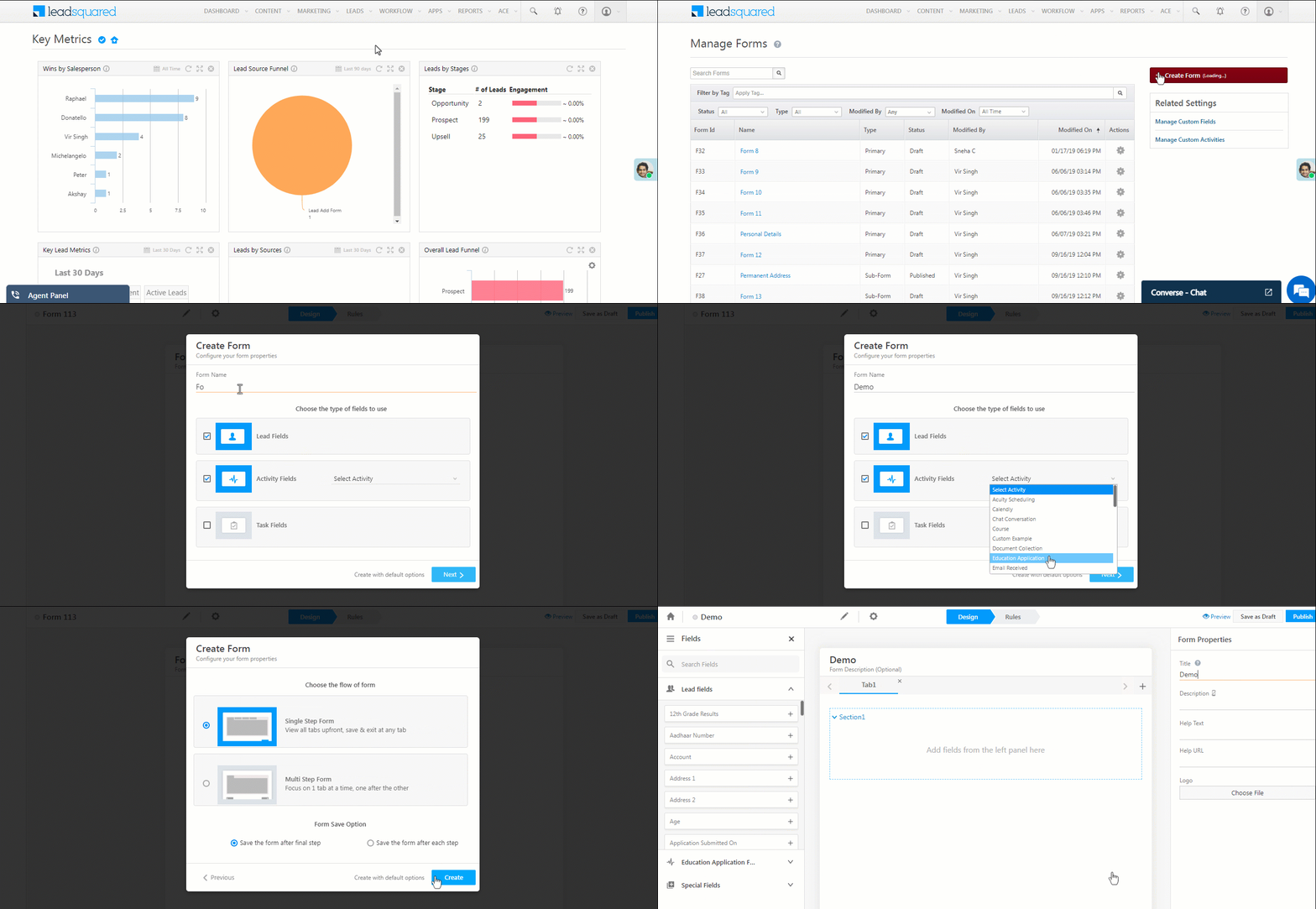
How to build customizable and mobile-friendly lead capture forms?
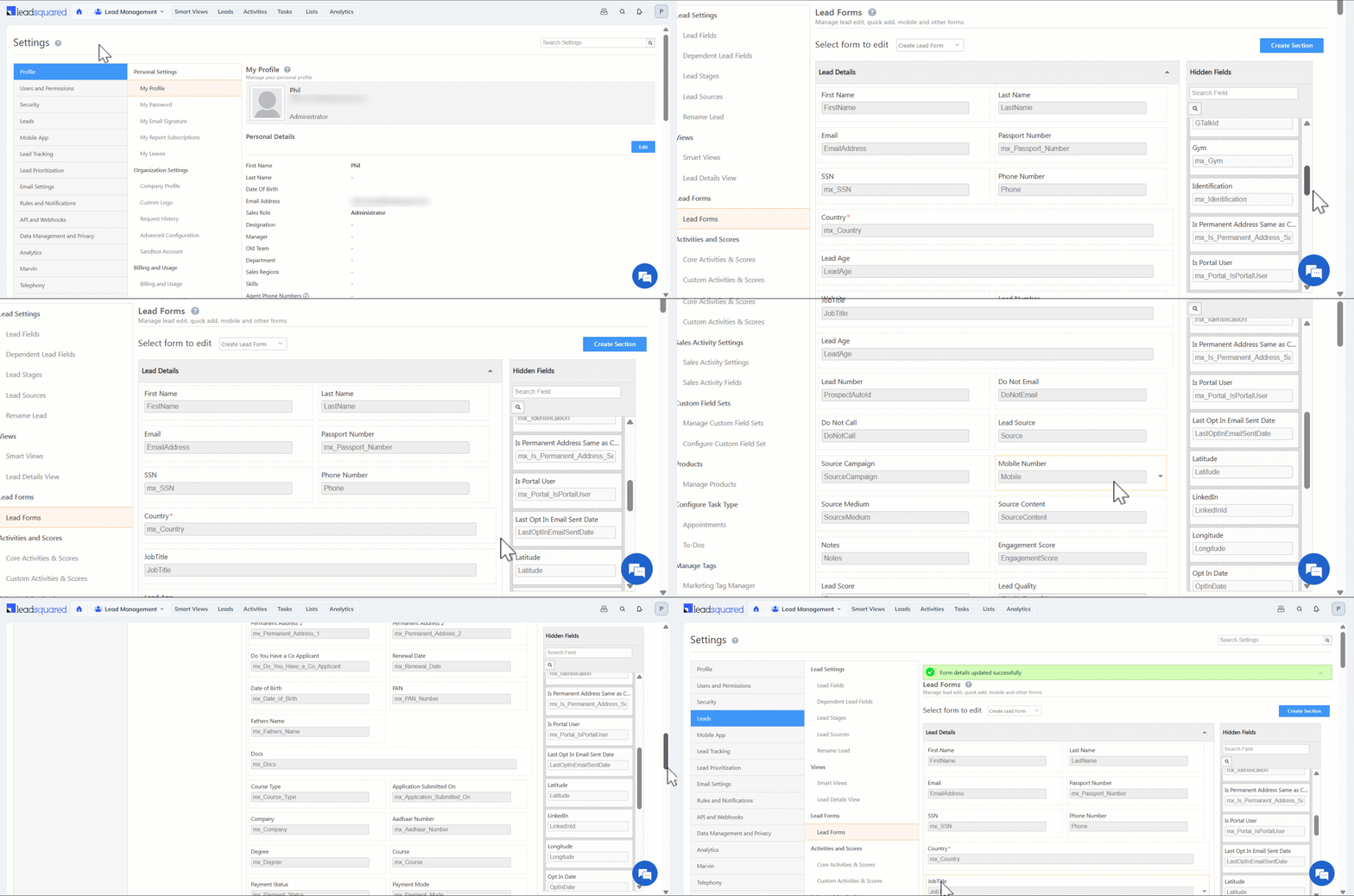
You can build customizable, mobile-friendly lead capture forms using LeadSquared’s form builder, which offers drag-and-drop customization and responsive design by default. Easily tailor fields, layouts, colors, and branding to match your campaigns, while forms automatically adapt to all screen sizes. With fast load times, minimal fields, and touch-friendly buttons, LeadSquared ensures a seamless lead capture experience across mobile and desktop devices.
You can also apply these mobile-first principles: single-column layout, 44×44px minimum tap targets, appropriate input types (`type=”email”`, `type=”tel”`), autocomplete attributes, and sticky submit buttons. For detailed technical specs and WordPress implementation, see Best Practice #7 in the guide above.
What is a lead intake form?
A lead intake form gathers more detailed information about a prospect’s needs, preferences, or requirements, helping businesses qualify and prioritize leads effectively.
What is the lead capture process?
The lead capture process involves attracting visitors, collecting their information through forms or landing pages, and storing that data in a CRM or marketing system like LeadSquared for follow-up and nurturing.
What is lead capture software?
Lead capture software helps businesses collect, organize, and track leads from multiple sources automatically. Tools like LeadSquared centralize lead data, improve follow-ups, and streamline the entire conversion workflow.
How do I make my lead capture form website GDPR-compliant?
Add unchecked consent checkbox (“I agree to receive emails”), link to Privacy Policy, enable double opt-in, log consent timestamps.
Table of Contents
Stay updated with the latest marketing & sales insights
We’ll email you once a week. No spam-just valuable content






 20 min read









 Strategies to reduce operational costs for clinics, hospitals & medical...